Run sheet — Automation Orchestrator
This is the page you hold while presenting. The narrative behind each beat,
with the actual words, is in talk-track.md — rehearse from
that, present from this.
| Length | 20 minutes (15 + 5 for questions) |
| Audience | Platform engineers and automation leads |
| Needs an environment? | Yes — the compelling beats are live workflow builds on the canvas |
| Assets | AO login page, AAP sign-in page, AO canvas, AO execution view |
Before you start (5 minutes, offline)
- Open these in tabs:
- AO:
https://ao-automation-orchestrator.apps.<cluster>.dyn.redhatworkshops.io/ - AAP:
https://aap-aap.apps.<cluster>.dyn.redhatworkshops.io/ - This run sheet
- Verify AO is reachable — the login page should render.
- Verify the integration sees templates: from a Claude Code session with
ao-sandbox, callproxies_aap_job_templates— expect 33 templates. - Decide whether to run the Windows Day 2 story (needs a running Windows
VM) or the Linux Day 1 fallback. Check the VMs:
openshift-sandbox→resources_list(VirtualMachineInstance). - Decide your close before you begin — see Landing it at the bottom.
The arc
| Time | Beat | On screen |
|---|---|---|
| 0–2 | Login through AAP SSO | AO login → AAP sign-in → AO dashboard |
| 2–4 | Show the integration | AO Integrations page, template list |
| 4–10 | Build the workflow on the canvas | AO workflow builder |
| 10–14 | Run the workflow | AO execution view, approval gate |
| 14–17 | The honest bits | (conversation, no screen) |
| 17–20 | Close | AO dashboard |
0–2 · Login through AAP SSO
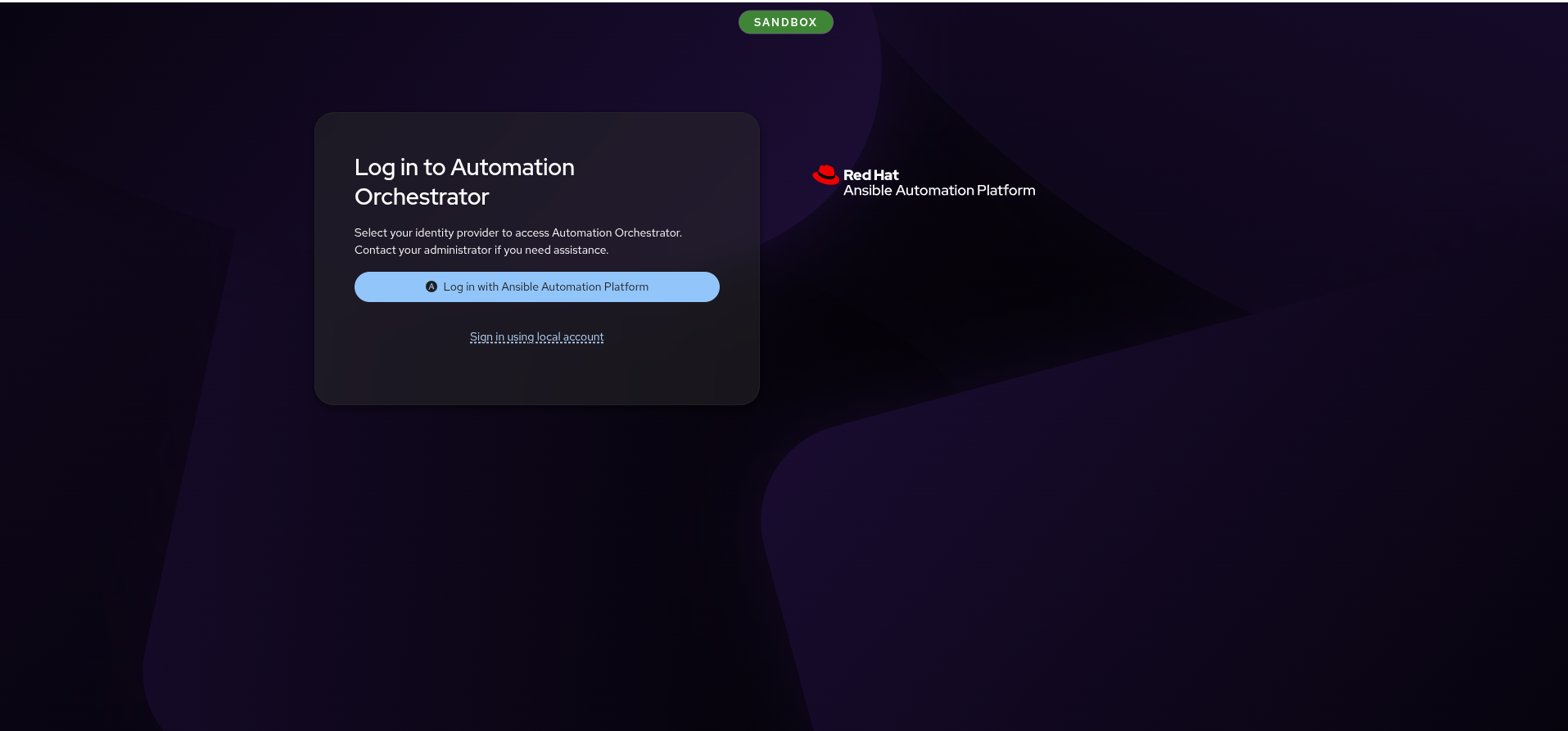
Show the AO login page. Point at "Log in with Ansible Automation Platform".
Click it. The redirect lands on the AAP sign-in page — point at the environment badge.
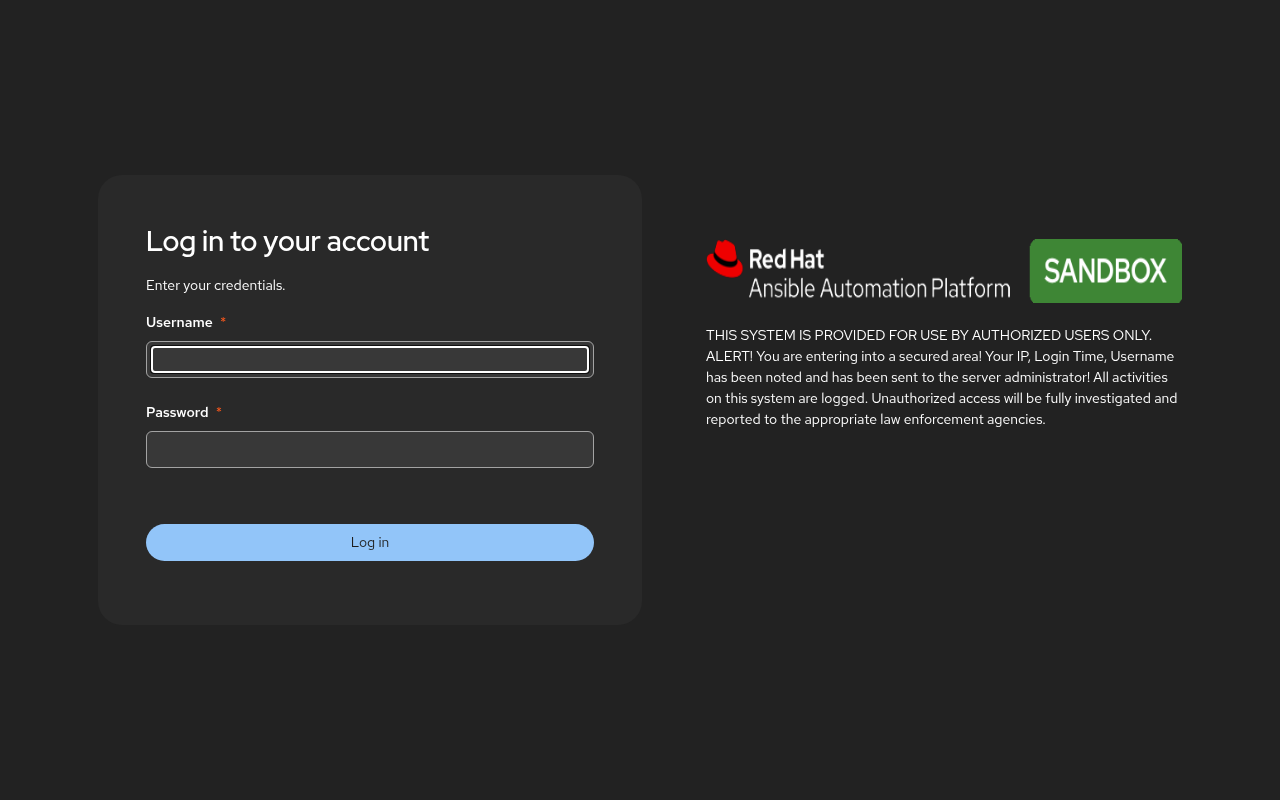
Log in with the AAP admin credentials. Land in AO — the green SANDBOX badge persists in the AO masthead after login.
"Same credentials. One identity store. Automation Orchestrator delegates authentication to the AAP gateway — no separate user database."
2–4 · Show the integration
Navigate to Configuration → Integrations. One row: Ansible Automation Platform, Enabled.
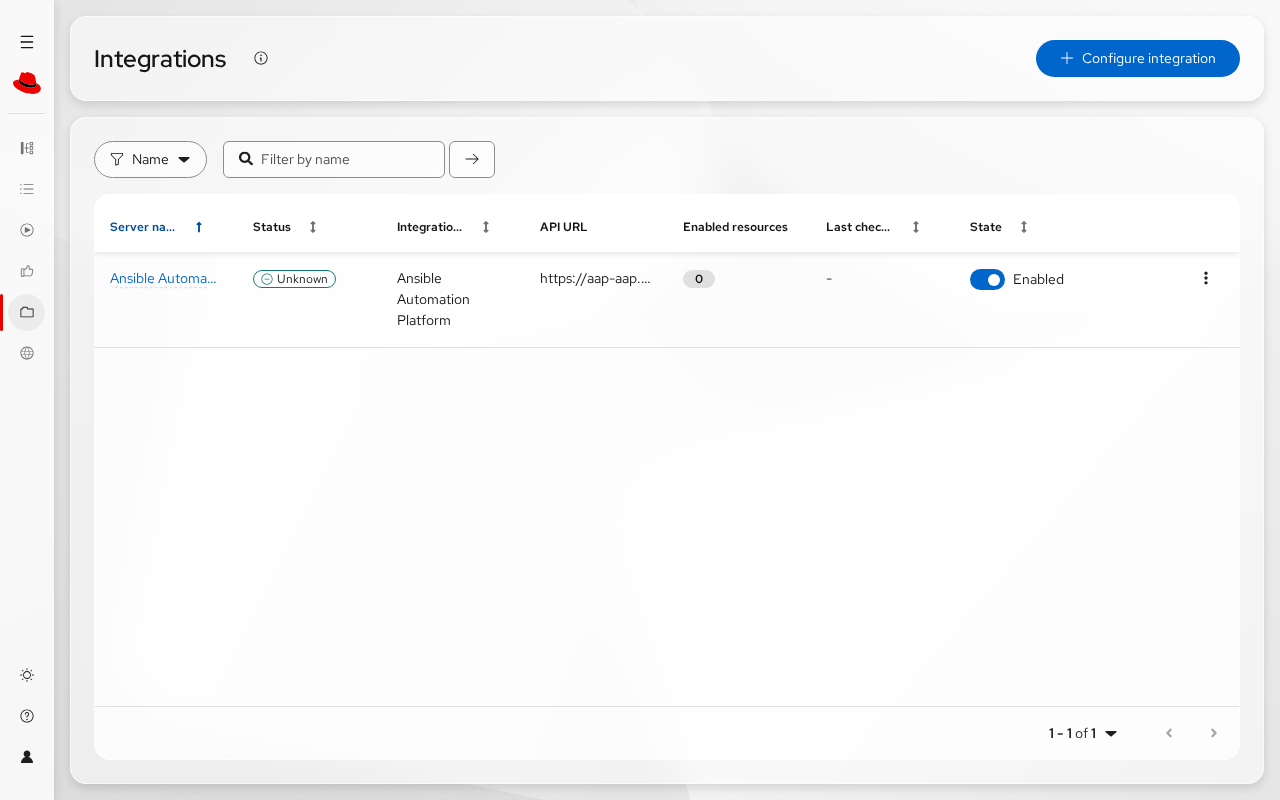
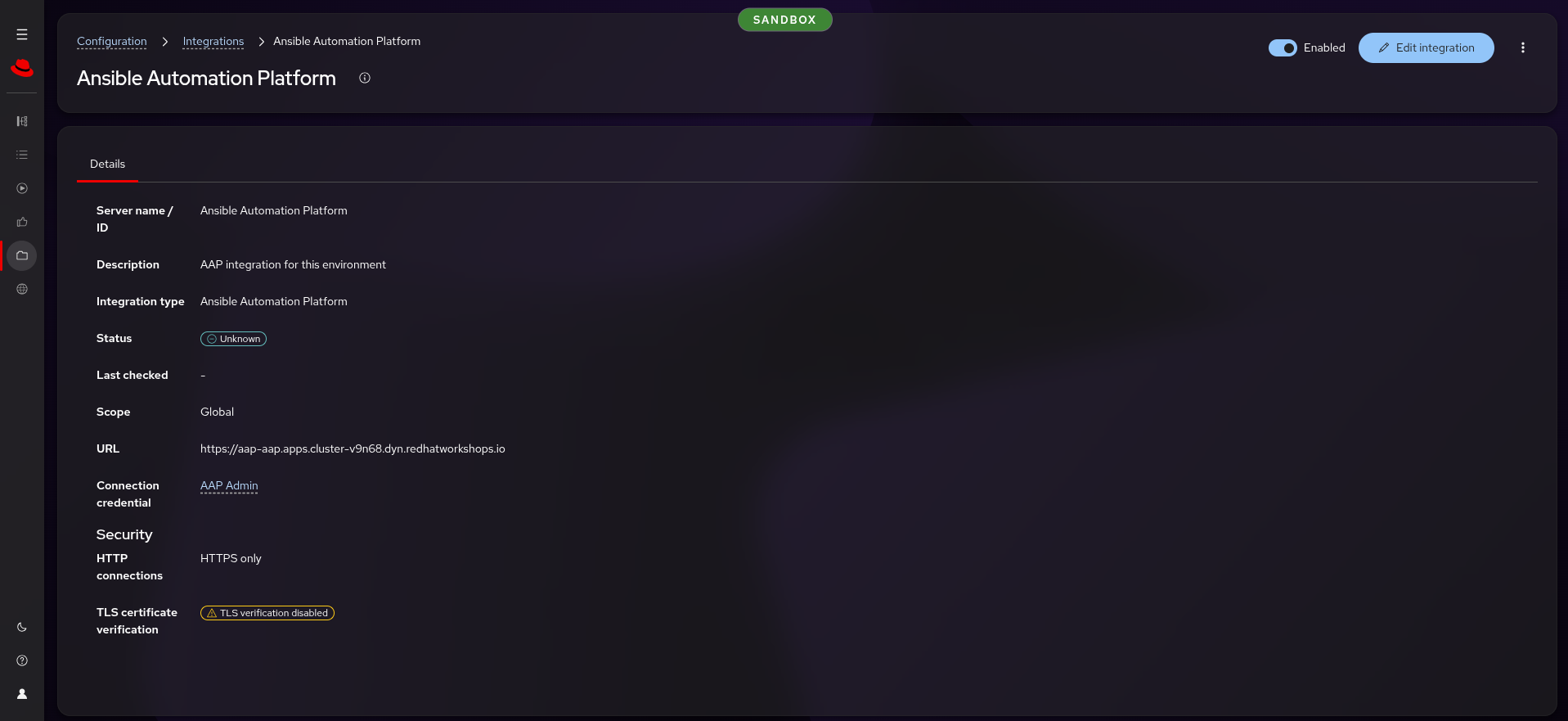
Click the AAP integration. Point at three things:
- Status: enabled
- Base URL: the AAP gateway hostname
- Connection credential: AAP Admin
"These are your existing job templates. Nothing was migrated, nothing was copied. AO sees them through the integration and can use them as workflow steps."
4–10 · Build the workflow on the canvas
Click Create Workflow. The canvas opens with trigger options on the right.
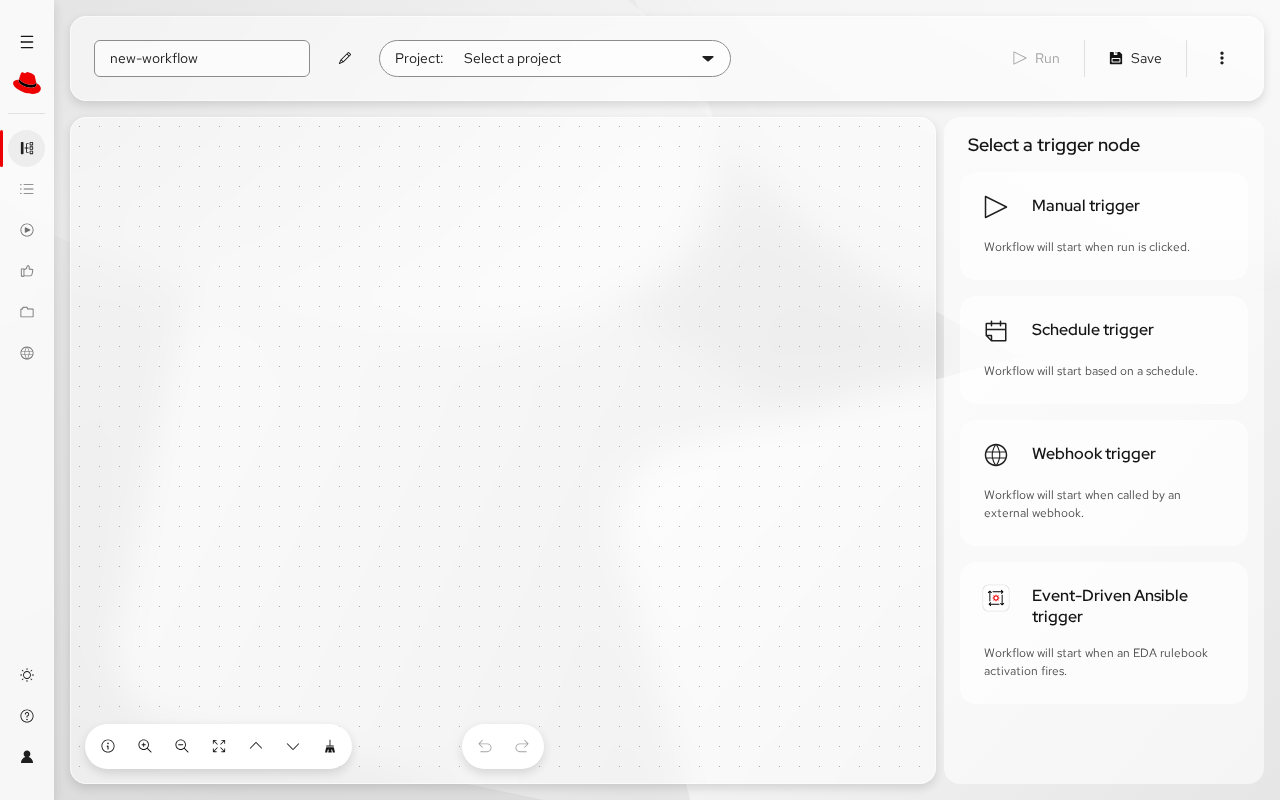
Pick Manual trigger, then name it.
Preferred story: Windows Day 2 compliance (if VMs are running)
Build on the canvas, narrating each step:
- Add an AAP node: Windows Day 2 - Compliance Scan
- Add a conditional node — connect from the scan result
- On the failure path: add an approval node — name it "Security lead approves remediation"
- After approval: add Windows Day 2 - Fix Compliance
- After fix: add Windows Day 2 - Compliance Scan again
- Save the workflow
"Three things you cannot express in an AAP workflow: a conditional branch, a human gate, and both in the same sequence. That is what you are looking at."
Fallback story: Linux Day 1 (if no Windows VM)
- Add: Linux Day 1 - 1 Provision
- Connect: Linux Day 1 - 2 Register
- Add an approval node — "Ops team approves configuration"
- Connect: Linux Day 1 - 3 Configure
- Connect: Linux Day 1 - 4 Compliance Scan
- Save the workflow
"Provision and register happen automatically. Configuration waits for a person. The scan proves it worked. That is one workflow, not four tickets."
10–14 · Run the workflow
Click Run. Point at each node as it progresses:
- The AAP job nodes dispatch to the controller — show the status updating
- The approval node waits — nothing proceeds until a person acts
"This is blocking. The job will not proceed until someone with the right permissions approves it. That is not a notification — it is a gate."
Approve it. Show the audit entry: who approved, when.
After approval, the remaining nodes execute. Point at the final scan result.
14–17 · The honest bits
No screen needed. Step away from the keyboard for this beat.
Two points, volunteered:
- The redhat.com interactive demo shows EDA triggers and LLM analysis — those are not wired up here. This demo shows the canvas and the gate, which are the parts that are GA and running.
- The MCP server is read-only — it queries AO, it does not create or run workflows. The governance model for AI-initiated workflows is a separate conversation.
"I show you the gaps because every one of them has an issue number. The things I showed you working are the things that are working."
17–20 · Landing it
"Your templates, your credentials, your RBAC. The orchestration adds conditional branches and human gates — the two things that turn a chain of jobs into a governed process."
Then ONE question. Pick based on what they asked during the demo:
- If they asked about compliance: "Which of your remediation sequences needs a gate that is not a Slack message?"
- If they asked about multi-team handoffs: "Where does work stop today because someone has to approve something and there is no governed way to do it?"
- If they asked about the canvas: "What is the first workflow you would build on this?"
Running it live
Every beat in this run sheet is already live — there is no offline version of this demo. The canvas build is the demo.
| Beat | What to verify first |
|---|---|
| Login | AO login page loads; "Log in with Ansible Automation Platform" button is present |
| Integration | proxies_aap_job_templates returns 33 templates |
| Canvas | The templates you plan to use are in the list |
| Execution | For Windows Day 2: a Windows VM is running. For Linux Day 1: sufficient cluster capacity |
Budget for job execution time. TODO — measure wall-clock per job during rehearsal. Provision and register are the long poles; compliance scan is fast.
Keep a fallback. If AO stalls during the live build, describe the workflow verbally and show the integration page as evidence. Do not debug in front of the customer.
Recovery moves
| Symptom | Move |
|---|---|
| AO login page returns 502 | The Route or backend pod is down. Describe the demo verbally and show AAP directly |
| OIDC redirect fails | Click "Sign in using local account" — use admin / the AAP admin password. Unlikely since APP_OIDC_ALLOW_PRIVATE_NETWORKS was set (#492) |
| Integration shows 0 templates | Re-run AAP Ecosystem - Configure Automation Orchestrator from AAP, wait 60 seconds |
| Approval node does not appear in node types | Confirm you are logged in as an authenticated user (not a service account) |
| Workflow fails to save | Check the validation message — duplicate node names or unconnected edges are the common causes |
| AO unreachable (503 or timeout) | Re-run AAP Ecosystem - Deploy Automation Orchestrator from AAP — it converges |
| AAP job fails inside the workflow | Open the job in AAP to see the error. The most common cause is a missing VM — provision first |
Screenshots still worth capturing
- [x] AO login page with "Log in with Ansible Automation Platform" button
- [x] AAP sign-in page showing the OIDC redirect (environment badge visible)
- [ ] AO Integrations page showing AAP connected with template count (recapture with SANDBOX badge visible)
- [ ] AO canvas with a completed workflow — all nodes connected (needs live rehearsal, capture with badge)
- [ ] AO execution view mid-run, approval node waiting
- [ ] AO execution view after approval, showing the audit trail
- [ ] AO execution view at completion, all nodes succeeded